This article only applies to your community if your Firstup contract includes this functionality. Please contact your Customer Success Manager with any questions about feature availability for your community.
Before You Start
This article assumes you are signed in to Creator Studio and have a role with permissions to create manage journeys. You will learn how to determine where members are in a journey. For detailed guidance on creating and managing journeys, refer to the articles below:
Journey Automation
Starting a Journey
Adding Journey Steps
Journey Management
Journey Reporting
Using Audience Attributes and Date Operators for Journey Automation
Journey Insights
Journey Use Cases
Looking for training on Journeys? Enroll in our eLearning course in the Training Center!
Member Visibility
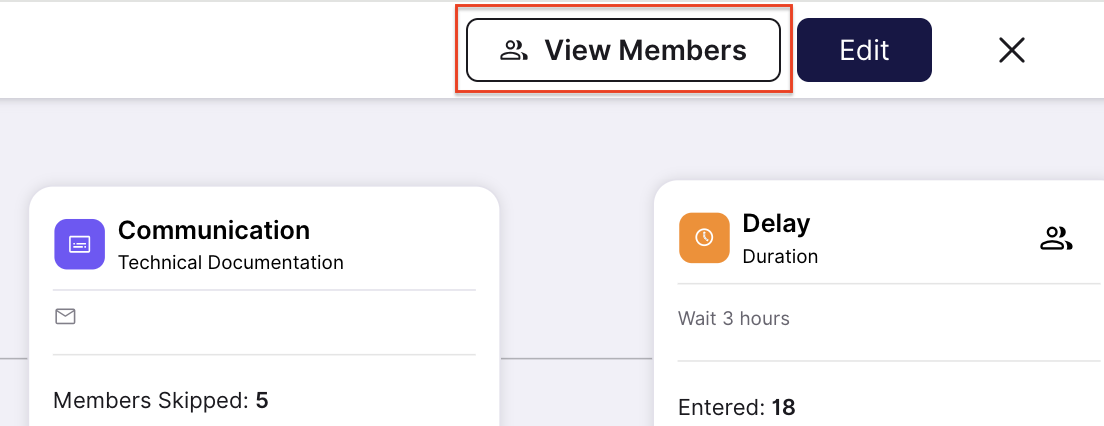
Users who have permission to view a journey can also click View Members at the top right of the journey page to view which users have qualified for each of the active journeys and track their progress.
Note: The tables do not auto-update. The data is pulled directly from the source and will be current at the time the table is loaded or refreshed.
View Members
The Active tab includes information about users who are currently in the journey. Under this tab, you will be able to view each user's:
- Name
- Job title (if available)
- Journey Entry Date/Time
- Last Communication Step
- Current Step
- Next Step
The Completed tab includes information about users who have completed the journey. Under this tab, you will be able to view:
- Name
- Job title (if available)
- Journey Entry Date/Time
- Last Communication Step
Search, Filter, and Sort Members
Under Journey Members, you can search for members by name or job title.
You can also filter members by status (Active or Completed) and refine your results using journey step or user attribute filters, such as country, job title, division, and more. Multiple filters can be applied to help narrow down your results. Select All Filters to see the full list of available options.
Sorting options let you reorder the members table by columns such as Journey Entry Date/Time, Last Communication Step, Current Step, or Next Step. To customize which columns are displayed, click the Columns icon and toggle columns on or off as needed. You can also drag and drop columns to rearrange their order. Note that the Name column cannot be moved.
Comments
0 comments
Article is closed for comments.